Printing Designs From Canva: A Complete Expert Guide
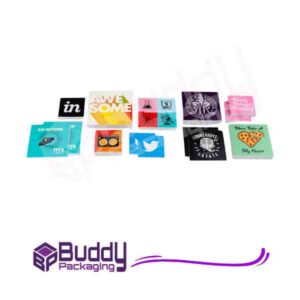
Printing designs from Canva has become one of the most popular choices for businesses, creators, and individuals who want professional-looking prints without complex software. Canva offers an intuitive platform that allows anyone to design and print marketing materials, packaging elements, stationery, and more. However, achieving high-quality printed results requires more than simply clicking the print button. Understanding file settings, colour modes, and print preparation makes a noticeable difference in the final output.
In this detailed guide, you will learn how printing designs from Canva works, how to prepare your files correctly, and how to ensure your designs look just as good on paper as they do on screen. Whether you are printing flyers, labels, or packaging designs, this article will help you avoid common mistakes and produce consistent, professional results.
Understanding Canva for Print Design
Canva is primarily known as an online design tool, but it also supports print-ready workflows when used correctly. Printing designs from Canva begins with choosing the right canvas size and format. Canva offers preset sizes for posters, business cards, stickers, and packaging elements. These presets are useful because they match common print dimensions used by professional printers.
However, it is important to remember that screen designs use RGB colours, while printing relies on CMYK. Canva automatically handles some conversions, but colour shifts can still occur. Designers who understand this limitation can adjust colours slightly to achieve better print accuracy.
Another important factor is resolution. Canva designs are created at a resolution suitable for print, but exporting settings matter. Choosing the correct file type and quality ensures sharp text and clear images.
Why Printing Designs From Canva Is Popular
Printing designs from Canva appeals to small businesses and startups because it reduces design costs. You do not need advanced graphic design skills or expensive software. Canva’s drag-and-drop interface allows quick experimentation with layouts, fonts, and colours.
Additionally, Canva integrates well with professional printing services. You can download files that meet industry standards or use Canva’s own printing service. This flexibility makes it suitable for everything from personal projects to commercial branding.
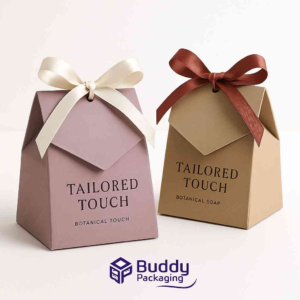
Many businesses also use Canva to create packaging elements. If you are working on branding materials such as labels or boxes, understanding print preparation is essential. For businesses focusing on branding and Custom Packaging, Canva can be a practical starting point when combined with professional printing partners.
Setting Up Your Design for Printing
Before printing designs from Canva, you must set up your document correctly. Start by selecting the correct dimensions. Avoid resizing designs later, as this can distort proportions and reduce quality. Always design at the final print size.
Bleed and margins are another critical consideration. Bleed ensures that your design extends beyond the cut edge, preventing white borders. Canva allows you to enable bleed settings, which is especially important for professional prints like packaging or stickers.
Typography also plays a major role. Fonts that look good on screen may appear different when printed. Choose clear, readable fonts and avoid extremely thin styles. Always check text spacing and alignment before exporting.
Exporting Files for Professional Printing
Exporting is one of the most important steps in printing designs from Canva. Canva offers several file formats, but PDF Print is usually the best option. This format preserves quality and supports bleed and crop marks.
When exporting, select the highest quality settings. Avoid compressed formats unless required. High-resolution PDFs ensure crisp images and sharp text. If your printer requests specific settings, always follow their guidelines. It is also wise to review your file before sending it to print. Zoom in to check for pixelation, alignment issues, or colour inconsistencies. A careful review can save time and money.
Colour Accuracy and Print Quality
Colour accuracy is a common concern when printing designs from Canva. What you see on screen may not match the printed result exactly. Screens display colours using light, while printers use ink. This difference can cause variations.
To minimise issues, avoid overly bright colours and test print small samples when possible. Neutral tones and consistent colour palettes often translate better to print. If colour accuracy is critical, consult your printer for guidance. Images should also be high resolution. Low-quality images can appear blurry or pixelated when printed. Always use images that meet print standards.
Printing Marketing and Branding Materials
Printing designs from Canva is widely used for marketing materials such as flyers, brochures, and posters. These materials require clear messaging and visual balance. Canva templates help, but customisation is key to standing out.
Brand consistency matters. Use the same fonts, colours, and layout style across all printed materials. This builds recognition and trust. Businesses that follow professional packaging design tips often achieve better results by maintaining visual consistency across print and digital platforms.
Using Canva for Packaging and Labels
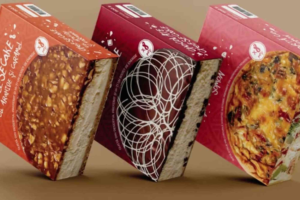
Packaging and labels require special attention because they are functional as well as visual. Printing designs from Canva for packaging involves precise sizing and alignment. Labels must fit perfectly and remain readable.
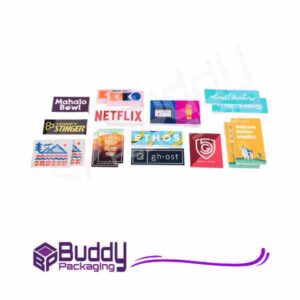
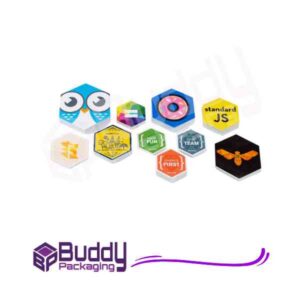
Always confirm dimensions with your packaging supplier. Small errors can result in misaligned prints. Canva’s rulers and guides can help with alignment, but manual checks are still necessary. If you are printing labels or stickers, consider working with professional printers who understand material types and finishes. This ensures durability and a premium look.
Common Mistakes to Avoid
One common mistake in printing designs from Canva is ignoring bleed and margins. This often results in unwanted white edges. Another issue is using low-resolution images, which reduces print quality.
Designers also sometimes overcrowd layouts. White space improves readability and visual appeal. Simple designs often look more professional when printed.Finally, failing to proofread text can be costly. Always double-check spelling, alignment, and details before printing.
Printing at Home Versus Professional Printing
Printing designs from Canva at home is convenient for small projects. Home printers work well for basic documents and small runs. However, professional printing offers superior quality, consistency, and finishing options.
If your project involves branding, packaging, or large quantities, professional printing is usually the better choice. Discuss your requirements with your printer to ensure compatibility with Canva files.
Printing Designs From Canva
Printing designs from Canva offers an accessible way to create professional-looking printed materials. With the right setup, export settings, and attention to detail, Canva Buddy Packaging Location designs can translate beautifully from screen to print.
Understanding colour, resolution, and layout principles ensures consistent results. Whether you are creating marketing materials, labels, or packaging, preparation is key to success.
FAQs
Can you use Canva designs for professional printing?
Yes, printing designs from Canva is suitable for professional printing when exported correctly. Using PDF Print format with bleed ensures high-quality results.
What is the best file format for printing designs from Canva?
PDF Print is the most recommended format. It maintains resolution, supports bleed, and is widely accepted by printers.
Do Canva colours print accurately?
Colours may vary slightly due to screen and print differences. Testing samples and avoiding overly bright colours can improve accuracy.
Is Canva good for packaging design?
Canva can be used for basic packaging designs, especially for small businesses. For complex packaging, professional design support may be beneficial.
Can you print Canva designs at home?
Yes, you can print at home, but results depend on your printer quality and paper type. Professional printers usually deliver better consistency.