Introduction
Design plays a critical role in how customers perceive a product, and packaging is often the first thing they notice. A well-thought-out package can communicate quality, build trust, and drive purchases. Thanks to user-friendly design tools, you no longer need to be a professional graphic designer to make compelling packaging. One of the best tools available for beginners and small business owners is Canva. If you’re wondering how to create packaging design in Canva, this detailed guide will walk you through everything you need to know.
Why Packaging Design Matters
The way your product looks on the shelf or online can make or break its success. Packaging serves more than just a protective function. It tells your brand story, differentiates you from competitors, and builds a connection with customers. A carefully designed package conveys professionalism, consistency, and attention to detail.
When businesses invest in design, they send a signal that the product inside is valuable. This is why even small businesses today focus on branding elements like colours, typography, and graphics. Canva simplifies this process by offering accessible tools for anyone with an internet connection.
Getting Started with Canva
Canva is a versatile design platform that provides ready-to-use templates, an intuitive drag-and-drop editor, and an extensive library of design elements. It is especially popular with entrepreneurs, marketers, and startups because it saves time and money.
Before you start designing, sign up for a free or pro Canva account. The pro version unlocks premium assets like stock photos, illustrations, and brand kits. Once you log in, search for packaging templates, or choose custom dimensions that fit your product’s box, bag, or label.
Step-by-Step Guide: How to Create Packaging Design in Canva
Define Your Packaging Needs
Every product has unique packaging requirements. A candle box will differ from a skincare jar label or a coffee bag. Begin by considering:
- The size and shape of your package.
- Whether you need a box, label, sleeve, or bag design.
- How the packaging should reflect your brand identity.
Having clarity on these points ensures you choose the right template and dimensions.
Choose the Right Template
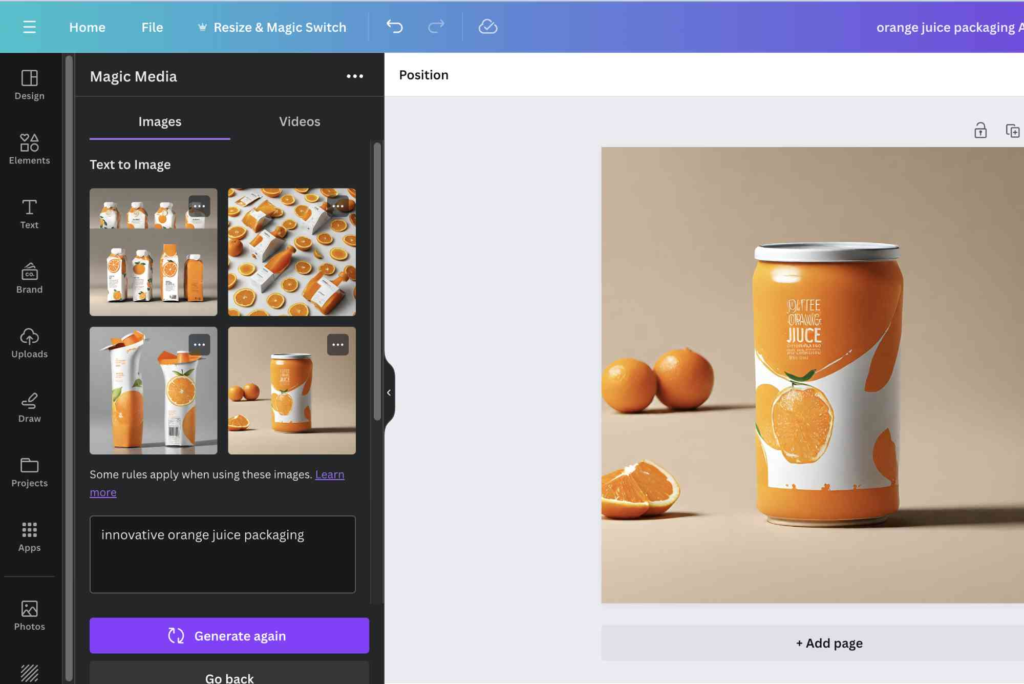
Canva provides a wide range of templates for boxes, labels, and tags. You can find them by searching for “product packaging” in the template library. Select a layout that closely matches your vision, then customise it to suit your brand. Even if you don’t see an exact match, you can use a custom-size canvas to design from scratch.
Customise with Your Branding Elements
Consistency in branding is key to recognition. Upload your logo, brand colours, and fonts into Canva’s brand kit feature. Then apply them across your packaging design. This ensures that your box or label aligns with other brand materials like your website, social media posts, and business cards.
You can also use Canva’s text tools to highlight product details, ingredients, or usage instructions. Make sure the text is clear, legible, and positioned strategically.
Add Visual Elements
Canva’s library includes illustrations, patterns, textures, and icons. These can be used to add personality and depth to your design. For example, a bakery might use hand-drawn food illustrations, while a tech gadget could benefit from sleek, minimal graphics.
High-quality product photos can also be added to the design if appropriate. Use Canva’s editing tools to crop, adjust brightness, and apply filters to create a polished look.
Focus on Layout and Hierarchy
Good packaging design guides the customer’s eye naturally. Place your brand name or logo at the top or center for maximum visibility. Product details, like flavor or size, should be easily noticeable. Secondary information such as usage instructions can be placed on the back or side.
Keep the design uncluttered. White space is not wasted space—it helps highlight key elements and makes the package more visually appealing.
Export for Print
Once your design is complete, download it in high resolution (PDF for print). Canva provides options like crop marks and bleed, which are essential for professional printing. Before sending the file to a printing company, double-check the dimensions, text alignment, and colours.
Many businesses choose professional printing services to ensure quality results. If you’re creating a retail product, consider working with experts in Custom Packaging to bring your Canva design to life.
Packaging Design Tips for Beginners
Even though Canva makes the process simple, following some professional packaging design tips can take your work to the next level.
- Use colours that resonate with your target audience. Bright tones attract attention, while muted shades suggest sophistication.
- Keep typography simple. Limit yourself to two or three fonts for clarity.
- Ensure readability by contrasting text with background colours.
- Think about functionality. Packaging should be easy to open and practical to use.
- Consider eco-friendly designs if sustainability is important to your brand.
These small adjustments can dramatically improve the final outcome.
Advanced Features in Canva for Packaging
Brand Kit and Consistency
If you upgrade to Canva Pro, you gain access to the brand kit feature. This allows you to store your brand fonts, colours, and logos in one place, making it easier to maintain consistency across different packaging designs.
Mockups for Realistic Previews
Canva also integrates with smart mockup tools, letting you see how your packaging will look on actual products. This helps visualize the design before committing to print. For example, you can preview your box design on a 3D box or your label design on a jar.
Collaboration with Teams
For businesses working with teams, Canva allows real-time collaboration. Designers, marketers, and product managers can comment, edit, and share feedback directly on the platform. This streamlines the design process and reduces errors.
Common Mistakes to Avoid
Many first-time designers make errors that weaken their packaging. Here are some pitfalls to avoid:
- Overloading the package with too much text or graphics.
- Using low-resolution images that look pixelated when printed.
- Ignoring print guidelines like bleed areas, which can result in cut-off text.
- Forgetting to align the design with brand values and target audience.
Avoiding these mistakes ensures your packaging looks professional and makes a strong impression.
FAQs
Can you create a box design in Canva?
Yes, Canva offers box templates that you can customise with your brand’s logo, colours, and product details.
Is Canva good for professional packaging design?
While Canva is beginner-friendly and great for small businesses, professional printers and custom packaging services can help refine the final product for retail.
How do I add product information on packaging in Canva?
Use the text tool to insert ingredients, instructions, or legal disclaimers. Position them neatly for readability.
Can I use Canva designs for commercial products?
Yes, Canva designs can be used for commercial purposes as long as you respect licensing rules for elements like stock photos.
What size should my packaging design be?
The size depends on your product. Always measure your package and set custom dimensions in Canva before starting.
Creating packaging design in Canva is both simple and effective. Whether you’re a small business launching a new product or an entrepreneur testing the market, Canva provides the tools to craft eye-catching designs without the steep learning curve of professional software. By understanding your product’s needs, applying branding consistently, and using Canva’s features, you can design packaging that attracts customers and communicates value.